

Description
One-Click Voice AI Setup for Your WooCommerce Store
Transform your WooCommerce store into an AI-powered voice commerce experience with VoxCartAI. In just a few clicks, add an intelligent voice assistant to your storefront that can engage customers, answer questions, provide order assistance, and deliver real-time support through natural conversations.
VoxCartAI for WooCommerce seamlessly connects your store with the VoxCartAI platform, helping businesses create more engaging customer experiences without complex setup or technical expertise.
Note: An active VoxCartAI subscription is required to use this plugin.
Why VoxCartAI?
Modern customers expect instant answers and personalized experiences. VoxCartAI empowers WooCommerce store owners with an intelligent voice assistant that is available 24/7 to engage visitors, answer questions, and improve customer satisfaction.
Key Features
AI-Powered Voice Assistant
Allow customers to communicate with your store using natural voice conversations through an intelligent AI assistant.
One-Click Voice Widget
Add a floating voice button to your storefront and enable instant customer interactions.
Product & Store Information
Help customers quickly find answers about products, store policies, shipping information, and frequently asked questions.
Order Support
Provide voice-based assistance for order-related inquiries and customer support requests.
WooCommerce Integration
Synchronize store events and data with the VoxCartAI platform, allowing your AI assistant to stay informed and deliver relevant responses.
Easy Configuration
Connect your WooCommerce store to VoxCartAI through a simple and secure setup process directly from your WordPress admin panel.
Enterprise-Grade Security
Built with secure authentication, encrypted credentials, and protected communication channels to ensure data security and reliability.
WooCommerce HPOS Compatible
Fully compatible with WooCommerce High-Performance Order Storage (HPOS) for optimal performance and scalability.
How It Works
- Install and activate the VoxCartAI for WooCommerce plugin.
- Connect your VoxCartAI account.
- Configure your AI agent settings.
- Enable the storefront voice widget.
- Start engaging customers through intelligent voice conversations.
Built for the Future of Customer Engagement
VoxCartAI combines Voice AI, Conversational AI, and WooCommerce integration to help businesses deliver faster support, improved customer experiences, and smarter digital interactions. Whether you’re looking to modernize customer service or create a more interactive shopping experience, VoxCartAI helps bridge the gap between your store and your customers through the power of voice.
External Services
This plugin connects to the VoxCartAI platform hosted by The One Technologies to provide voice assistant functionality and conversational AI services.
Privacy Policy:
https://voxcart.theonetechnologies.co.in/privacy
Terms of Service:
https://voxcart.theonetechnologies.co.in/terms
VoxCartAI Platform:
https://voxcart-ai.theonetechnologies.co.in/
The One Technologies:
https://theonetechnologies.co.in
Captures d’écrans

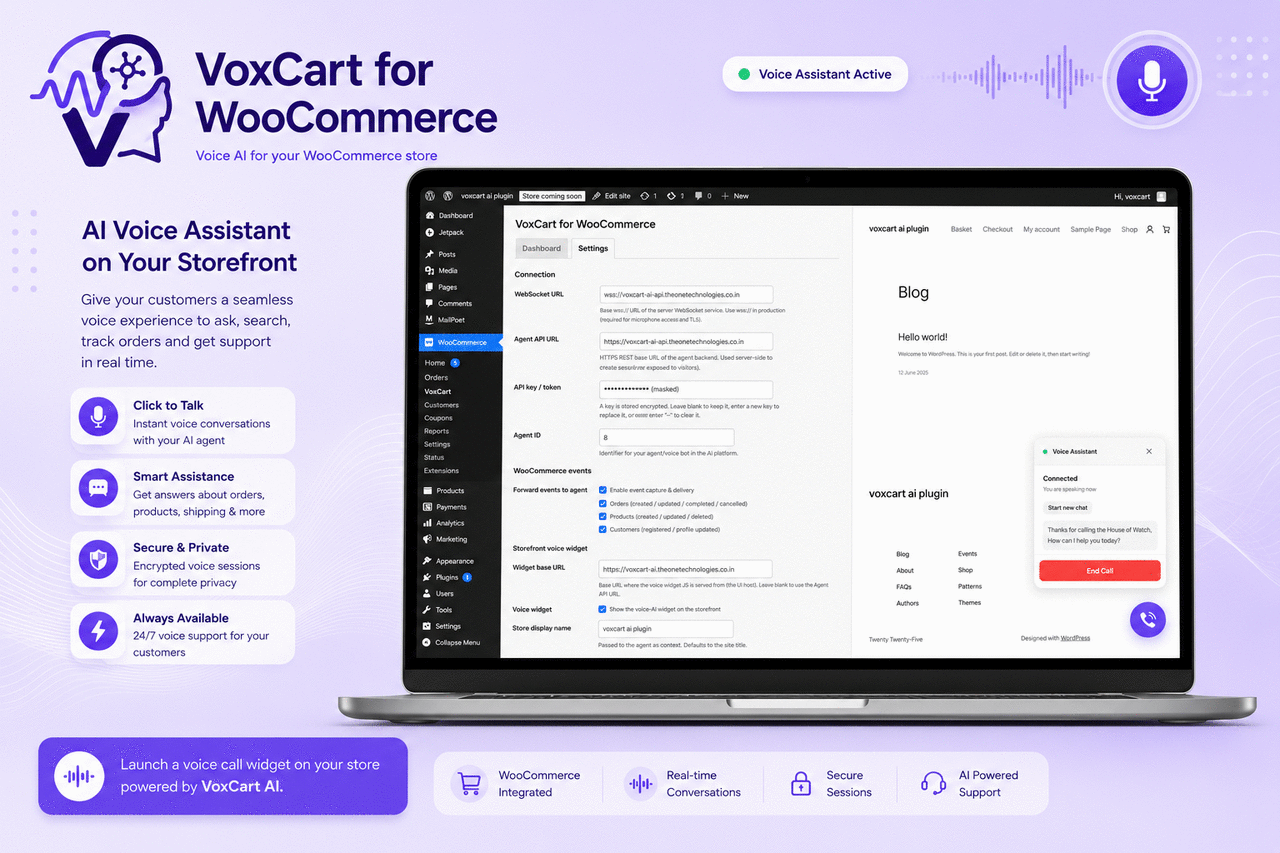

Installation
Before you start: you need an active VoxCartAI account. Sign up at https://voxcart-ai.theonetechnologies.co.in. From your VoxCartAI dashboard you will obtain two things: an API Key and an Agent ID (the workflow/agent you want customers to talk to).
- Upload the
voxcartai-for-woocommercefolder to/wp-content/plugins/, or install the ZIP via Plugins Add New Upload Plugin. - Activate the plugin. WooCommerce must be installed and active first.
- Go to WooCommerce VoxCartAI Settings.
- The VoxCartAI service URLs come pre-filled, so you normally only need to enter:
- API Key — found in your VoxCartAI dashboard under API / credentials. Encrypted immediately on save and never shown again.
- Agent ID — the workflow/agent identifier from your VoxCartAI dashboard. This selects which AI agent answers calls, so to use a different agent you simply change this value. (The pre-filled Agent API URL, WebSocket URL and Widget base URL only need changing if you run a self-hosted or staging VoxCartAI backend.)
- Enable Voice widget.
- Click Save Changes, then open the Dashboard tab and click Check Status to confirm the plugin reports « Configured ».
- Visit your storefront — the voice-call button should appear in the corner.
To switch the store to a different agent later, just change the Agent ID in Settings and save — no other changes are needed.
FAQ
-
Where do I get my API Key and Agent ID?
-
Both come from your VoxCartAI account at https://voxcart-ai.theonetechnologies.co.in. After signing in, your API Key is in the dashboard’s API/credentials area, and the Agent ID is the identifier of the workflow/agent you created. Paste these into WooCommerce VoxCartAI Settings — the service URLs are already pre-filled for you.
-
How does the voice connection actually work?
-
When a visitor clicks the call button, your WordPress server (not the browser) asks the VoxCartAI API to create a session, using your encrypted API key. Only a short-lived, single-use session token is returned to the browser. The browser then opens a secure WebSocket (
wss://) straight to the VoxCartAI platform using that token, and audio is streamed over that connection. Your API key and embed token never reach the visitor’s browser. -
Does my host need to support WebSockets?
-
No. The WebSocket connection is opened from the customer’s browser to the VoxCartAI platform — not from your PHP server. Standard shared hosting works fine.
-
Where is my API key stored?
-
The API key is encrypted (AES-256-GCM) in the WordPress database, with the encryption key derived from your site’s
AUTH_KEYsalt. It is never printed in page source, localized to scripts, or returned by any REST response. -
Is voice data stored?
-
The plugin does not store any audio inside WordPress. Inside WordPress it stores only structured event data (order IDs, product IDs, customer IDs) in a local queue table for agent context.
The VoxCartAI platform, however, does record and store the conversation audio (WAV recordings) and transcripts on its own servers, so that you can review calls and so the AI service can function. Because voice is personal data, you should disclose this to your customers. Retention and handling are governed by the VoxCartAI Privacy Policy: https://voxcart.theonetechnologies.co.in/privacy
-
Do I need to update my privacy policy?
-
Yes. You should disclose to your customers that voice interactions are processed by VoxCartAI (TheOne Technologies). Voice is personal data under GDPR. A sample disclosure: « Our store uses a voice AI assistant provided by TheOne Technologies (VoxCartAI). Voice interactions are processed by their platform. See [VoxCartAI Privacy Policy]. »
-
What WooCommerce events are forwarded to the agent?
-
Orders (created, updated, completed, cancelled), products (created, updated, deleted), and customers (registered, profile updated). Each event type can be toggled independently in Settings.
-
The plugin returns a 402 status when the store’s VoxCartAI subscription is inactive or has insufficient balance. The voice widget silently hides itself so customers never see a broken call UI. A
wwsa:widget_unavailableDOM event is dispatched so themes can react (e.g. hide a « Talk to us » button). -
Can I restrict the widget to specific pages?
-
Yes. Add a filter in your theme’s
functions.php:add_filter( 'wwsa_load_widget', fn() => is_woocommerce() || is_cart() || is_checkout() ); -
How do I uninstall cleanly?
-
Go to Settings Diagnostics and enable « Delete all plugin data on uninstall », save, then delete the plugin. All tables, options, and encrypted credentials will be removed.
Avis
Il n’y a aucun avis pour cette extension.
Contributeurs/contributrices & développeurs/développeuses
« VoxCartAI for WooCommerce – AI Copilot for Voice Commerce, Shopping Assistance & Store Automation » est un logiciel libre. Les personnes suivantes ont contribué à cette extension.
Contributeurs
Le développement vous intéresse ?
Parcourir le code, consulter le SVN dépôt, ou s’inscrire au journal de développement par RSS.
Journal des modifications
1.0.6
- Voice widget is now enabled by default on fresh installs.
- Updated plugin slug to voxcartai-for-woocommerce.
1.0.5
- Updated and optimized the listing screenshots.
1.0.4
- Rebranded plugin name to VoxCartAI for WooCommerce across admin UI and documentation.
1.0.3
- Refreshed the plugin description and banner artwork.
1.0.2
- The VoxCartAI service URLs (Agent API, WebSocket, Widget) are now pre-filled, so setup only requires an API Key and Agent ID.
- Streamlined the External Services documentation.
1.0.1
- Renamed the admin menu to « VoxCartAI » for clearer branding.
- Documentation: clarified that conversation audio (recordings and transcripts) is stored on the VoxCartAI platform, and expanded setup guidance for the API key, Agent ID and WebSocket URL.
- No functional changes to data handling.
1.0.0
- Initial release — WooCommerce connector for the VoxCartAI voice agent platform.
- Storefront voice widget with server-side session creation (API key never exposed to browser).
- WooCommerce event queue: orders, products, customers.
- AES-256-GCM encrypted API key storage.
- HPOS (custom order tables) compatibility declared.
- Rate-limited public REST endpoints.
- Daily maintenance cron for log and queue cleanup.