

Description
Optimisez toutes vos images instantanément et gratuitement.
Cimo optimizes, resizes, and converts your images to WebP instantly as you upload them — right in your browser, before the files are ever added to your Media Library. From WordPress’ point of view, it’s as if the image was already optimized before you uploaded it, keeping your site’s load speed fast without compromising quality.
Visit Cimo’s website to learn more about how Cimo does things.
- Utilisation illimitée – téléversez autant d’images que vous le souhaitez
- Optimisation instantanée – pratiquement aucun temps d’attente
- No extra server load, bandwidth, or external image-processing services
Note: Cimo works in all modern browsers (Chrome, Firefox, Edge, Opera). In Safari, images will be optimized but will keep their original file format. WebP conversion is not supported in Safari.
Image Optimization options:
- WebP quality – set the quality level for WebP conversion (1-100), defaults at 80%
- Max image dimension – automatically resize images to a maximum dimension while preserving aspect ratio
- WordPress automatic scaling – disable WordPress’s built-in 2560px image scaling
- Thumbnail generation – disable all WordPress thumbnail generation to save disk space
- Individual thumbnail sizes – selectively enable/disable specific thumbnail sizes
- Preset configurations – one-click « Recommended » settings for optimal performance
- Statistics dashboard – view total storage saved, compression ratio, and optimization metrics
Comment l’utiliser
Il vous suffit de téléverser vos images dans votre gestionnaire de médias comme vous le feriez normalement. Cimo optimise instantanément les images au format WebP de nouvelle génération dans votre navigateur pendant le processus de téléversement. Le fichier optimisé obtenu est celui qui est enregistré sur votre site WordPress. C’est incroyable !
Pourquoi utiliser Cimo ?
- Completely Free & Unlimited – no quotas, no limits, no paywalls. Optimize as many images as you want, forever.
- Instant, Browser-Based Processing – images are optimized as you upload, with zero server load and no external services.
- Privacy-First – your images never leave your device until they’re uploaded to WordPress.
- Future-Proof Format – automatic WebP conversion reduces file sizes by up to 80%, with full control over quality, dimensions, and thumbnail generation.
- Universal Compatibility – works seamlessly with the WordPress Block Editor, Elementor, Beaver Builder, and all major page builders.
Fonctionne avec
- L’éditeur de blocs natif de WordPress / Gutenberg
- Devrait fonctionner avec n’importe quelle extension, mais nous avons vérifié qu’elle fonctionne avec celles-ci :
- Constructeurs de pages populaires
- Elementor
- Divi (partiel : le dépôt de fichiers n’est pas encore pris en charge)
- Breakdance
- Bricks Builder
- Oxygen
- Beaver Builder
- WP Bakery
- Constructeurs d’éditeurs de blocs populaires
- Stackable
- Spectra
- Kadence
- Greenshift
- GenerateBlocks
- Popular plugins
- WooCommerce
- Constructeurs de pages populaires
Étant donné que l’optimisation de Cimo s’effectue pendant le processus de téléversement, Cimo devrait être compatible avec toutes les extensions qui utilisent des images
What’s in Cimo Premium?
Free already optimizes images as you upload. Cimo Premium finishes the job on what’s already on your site:
- Bulk Optimization – optimize your existing images, videos and audio in your Media Library in one click, no server processing as well
- Optimize All Media Uploaded via Form Plugins – automatically optimize images, videos, and audio uploaded through popular form plugins (Gravity Forms, WPForms, Ninja Forms, Formidable, Fluent Forms, etc.)
- Smart Optimization – uses advanced algorithms to automatically select the optimal compression settings for each image, for the best results without manual tweaking.
- Video & Audio Optimization – automatically optimize and optionally downscale the resolution of videos and audio quality as you upload them
- Low Quality Image Placeholders (LQIP) – for native image blocks, display a subtle image placeholder while waiting for images to load, then fade the loaded image in.
- Stealth Mode – completely hides all Cimo branding and interface elements, while all optimization features continue to work seamlessly in the background.
Visit our website to learn more
Video & Audio optimization are also performed as you upload your files, even before the files are added to your Media Library.
Parfait pour
- Website owners and content creators who upload large images without optimizing them first
- Developers and agencies building or managing sites that need fast, optimized images
- Anyone wanting automatic WebP conversion without a manual workflow
- Sites où le traitement d’images côté serveur n’est pas disponible ou souhaité
- Les personnes soucieuces de leur vie privée qui ne souhaitent pas que leurs images soient envoyées à des serveurs tiers.
Captures d’écrans
Installation
- Téléversez le dossier
cimovers le répertoire/wp-content/plugins/ - Activez l’extension via le menu « Extensions » dans WordPress.
- C’est tout ! Cimo optimise automatiquement les images lorsque vous les téléversez.
FAQ
-
Qu’est-ce qui différencie Cimo des autres optimiseurs d’images ?
-
Contrairement aux extensions côté serveur, Cimo traite tout dans votre navigateur. Pas d’API externes, pas de traitement serveur, pas d’attente : juste une optimisation instantanée au fur et à mesure que vous téléversez.
-
Comment saurai-je si cela a fonctionné ?
-
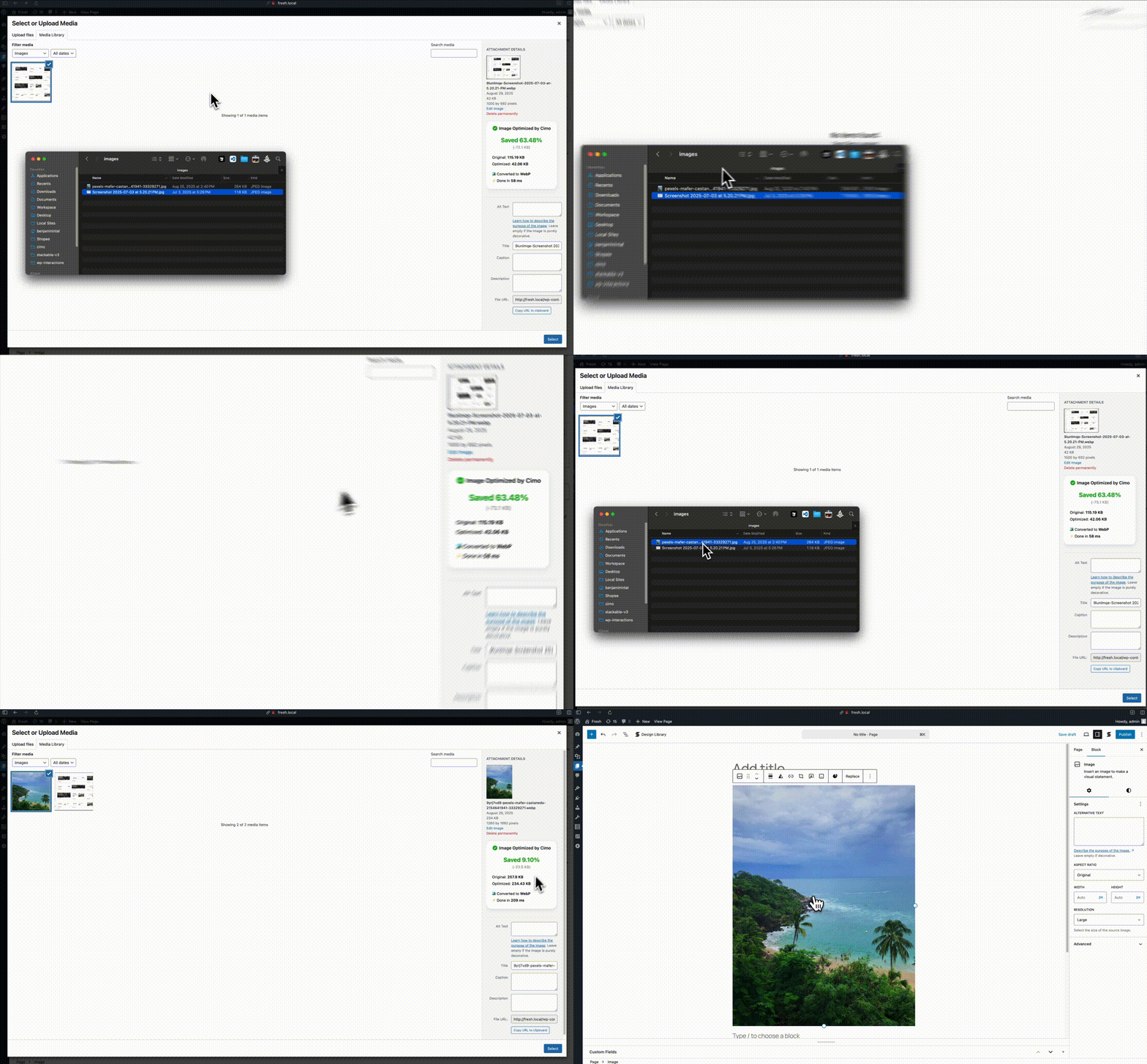
Lorsque vous téléversez une image dans votre gestionnaire de médias (par exemple un fichier .jpg), vous remarquerez qu’après le téléversement, elle sera au format .webp ! Vous trouverez également des informations supplémentaires dans le gestionnaire de médias concernant l’image que vous avez téléversée.
-
Cimo fonctionne-t-il dans tous les navigateurs ?
-
Cimo works in all modern browsers including Chrome, Firefox, Edge, and Opera. In Safari, images will be optimized but will keep their original file format. WebP conversion is not supported in Safari.« `
-
Cimo n’a-t-il vraiment aucune limite ?
-
Oui ! Contrairement à d’autres extensions qui facturent à l’image ou imposent des quotas mensuels, l’optimisation et la compression d’images de Cimo sont totalement illimitées et gratuites à vie.
-
Mes données sont-elles envoyées à des serveurs externes ?
-
Non ! Cimo traite tout localement dans votre navigateur. Vos ressources multimédias ne quittent jamais votre appareil avant d’être téléversées sur votre site WordPress, et ne sont pas non plus transférées vers un autre serveur pour être traitées.
-
Comment fonctionne le traitement côté client de Cimo ?
-
Nos navigateurs actuels sont très performants et disposent déjà des capacités nécessaires pour convertir des images dans différents formats.
Au fond, la conversion s’effectue grâce à une utilisation intelligente de l’API Canvas de JavaScript qui traite vos images dans le navigateur juste avant leur téléversement vers WordPress.
Cela signifie des téléversements plus rapides, aucune charge sur le serveur et une confidentialité totale.
-
Quels formats d’image Cimo prend-il en charge ?
-
Actuellement, la conversion WebP est entièrement prise en charge.
-
Cimo fonctionne-t-il avec des images existantes ?
-
Cimo optimizes images during the upload process. For existing images, we have bulk optimization available in Cimo Premium. Learn more on our pricing page.
-
Cimo convertit-il les fichiers vidéo et audio ?
-
Yes Cimo can convert video and audio files, but that’s in our premium version, check out website for more information on it.
-
Cimo ralentira-t-il mes téléversements ?
-
En fait, cela les accélère ! Comme les images sont compressées avant leur téléversement, elles se transfèrent plus rapidement et occupent moins d’espace de stockage.
-
How do I access the settings page?
-
Go to Settings > Cimo in your WordPress admin. There you can configure options such as WebP quality, set maximum image dimensions, control thumbnail generation, and view optimization statistics.
-
What are the recommended settings?
-
Click the « Recommended » button in the settings page to apply optimal settings:
– WebP Quality: 80% (best balance of quality and file size)
– Max Image Dimension: 1920px (perfect for modern web)
– Thumbnail Generation: Disabled (saves disk space)These settings work great for most websites and provide excellent performance.
-
Can I see how much storage I’ve saved?
-
Yes! The settings page includes a statistics dashboard showing:
– Total storage saved
– Percentage reduction
– Number of media files optimized
– Original vs optimized file sizes
Avis


Contributeurs/contributrices & développeurs/développeuses
« Cimo – Optimiseur d’images instantané et convertisseur WebP gratuit » est un logiciel libre. Les personnes suivantes ont contribué à cette extension.
Contributeurs

“Cimo – Optimiseur d’images instantané et convertisseur WebP gratuit” a été traduit dans 1 locale. Remerciez l’équipe de traduction pour ses contributions.
Traduisez « Cimo – Optimiseur d’images instantané et convertisseur WebP gratuit » dans votre langue.
Le développement vous intéresse ?
Parcourir le code, consulter le SVN dépôt, ou s’inscrire au journal de développement par RSS.
Journal des modifications
1.4.2
- New: Free settings page shows real bulk optimization progress #66
- New: Media Library notice when video optimization is skipped (premium) #48 #49
- Fixed: Improved error message for bulk optimization on non-HTTPS sites #54
- Fixed: Smart Optimization for HEIC images (premium) #60
- Fixed: SVG sanitizer loading issue (premium) #55
1.4.1
- Fixed: PHP error notice because of invalid big_image_size_threshold usage
1.4.0
- New: Smart Optimization (premium) – get even smaller image file sizes when uploading images #35
- New: Video & audio can now be optimized in Bulk Optimization #37
- New: Toggle optimization option – toggle Cimo’s optimizer on/off when needed #36
- Fixed: When uploading a video using a webkit-based browser, the progress bar would get stuck to ready #47
- Fixed: When WordPress Automatic Image Scaling is ON, the file size in metadata does not match with the final #43
1.3.1
- Fixed: Optimization metadata may not be attached if uploading images with the same filename #40
- Fixed: Added view all stats link
- Fixed: Added upgrade links
1.3.0
- New: Bulk optimization without server processing (premium)
- New: Frontend file uploads can now be optimized (premium)
- New: Integrations to popular WordPress Form plugins (premium)
- New: Added stealth mode (premium)
- New: Added settings link in plugins page entry
- New: Added support for dropping images in WooCommerce descriptions
- Fixed: Cimo settings page improvements
- Fixed: Improvements on stats metabox styling
1.2.3
- New: Added SVG Optimization (premium)
- New: Added HEIC image format support (premium)
- Fixed: Dropping files stopped working in some instances #32
1.2.2
- Fixed: Uploading an image via Media > Add Media File doesn’t show stats #4
- Fixed: Dragging multiple images in quick succession sometimes doesn’t optimize the image #3
- Fixed: LQIP doesn’t work correctly when the image has a srcset attribute #11
- Fixed: Closing the upload button on the block toolbar stops uploading of media #9
- Fixed: Uploading images with the same name in the same session doesn’t add the metadata correctly #8
1.2.1
- New: If the resulting optimized image is bigger than the original image, the image is now skipped and the original image is kept.
- Fixed: Fixed license activation issue
1.2.0
- New: Video Optimization (premium)
- New: Audio Optimization (premium)
- New: Low Quality Image Placeholders (premium)
- New: Added rating notice at the right time
- Fixed: Now intercepts media uploads when performed inside the block editor iframe
1.1.2
- Fixed: When uploading images, the original image is also uplaoded.
1.1.1
- Fixed: When uploading images using Safari, images will just upload as they normally would.
1.1.0
- New: Statistics dashboard showing total storage saved, compression ratio, and media optimized
- New: Admin settings page under Settings > Cimo
- New: WebP quality control slider (1-100%) for custom compression levels
- New: Maximum image dimension setting to automatically resize large uploads
- New: WordPress automatic scaling control (disable the 2560px scaling threshold)
- New: Granular thumbnail generation control – disable all or select specific thumbnail sizes
- New: « Recommended » preset for one-click optimal settings
1.0.5
- Fixed: Metadata saving fails if WP is installed in a subdirectory
1.0.4
- New: Added partial support for Divi
1.0.3
- Fixed: File prefixes are no longer used during the optimization process. The original file names are now retained.
1.0.2
- Fixed: Dragging images on a blank editor or on top of other blocks now converts images
- Fixed: Dragging images into the block editor now converts images
- Fixed: Clicking on the Upload button on an image block directly now converts images
- Fixed: Uploading images from Media > Library and in grid view now converts images
- Fixed: Minor console JS error in some admin pages
- Change: Added admin notice to let user know what to expect
1.0.1
- Fixed: Minor string translation tweaks
1.0.0
Initial release of Cimo – bringing free, unlimited image optimization and compression to WordPress.
- Initial release
- Client-side image optimization
- WebP conversion support
- Unlimited compression
- Privacy-first approach